How to add transitions to a video
Easily create professional looking transitions between your video clips by adding zooms, dissolves, and other dynamic effects in elevate.io
Adding transitions between clips is a simple and quick way to make your edit feel more polished and flow more naturally from one scene to the next. And now adding them in elevate.io is as easy as a quick drag and drop.
Open the Effects panel
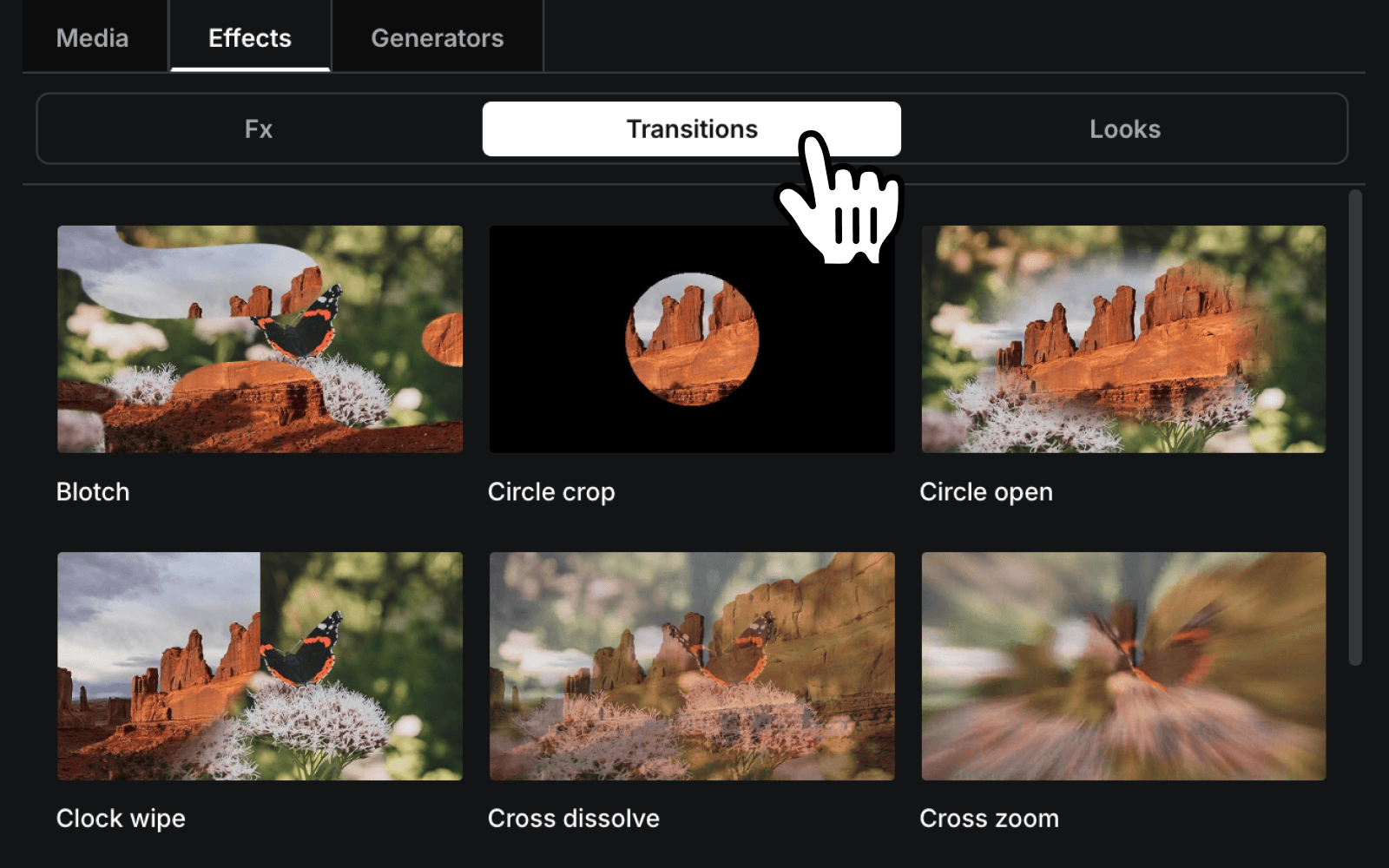
Head to the Effects panel on the left side of the editor, and select the Transitions tab.
Drag and drop a transition
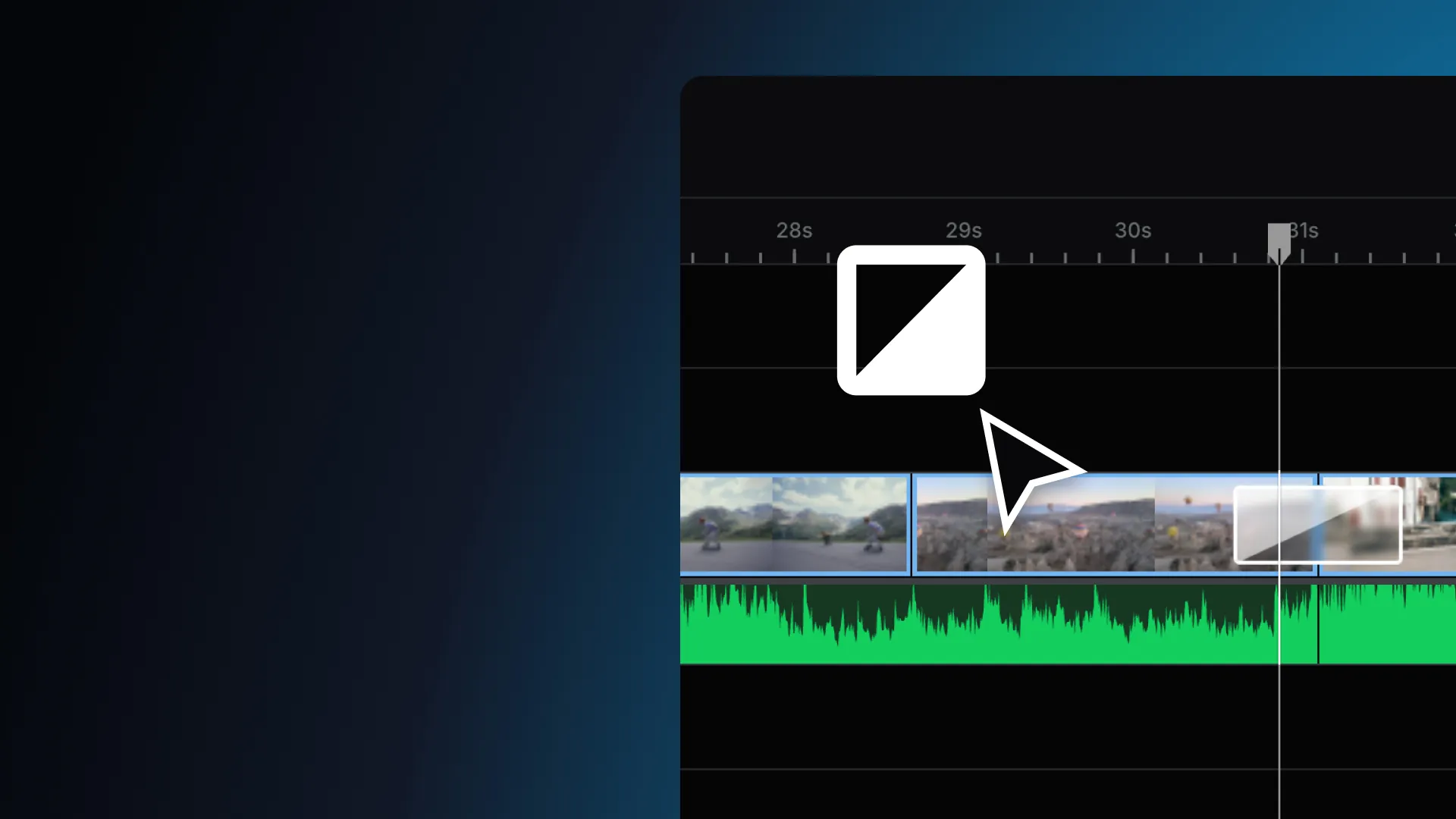
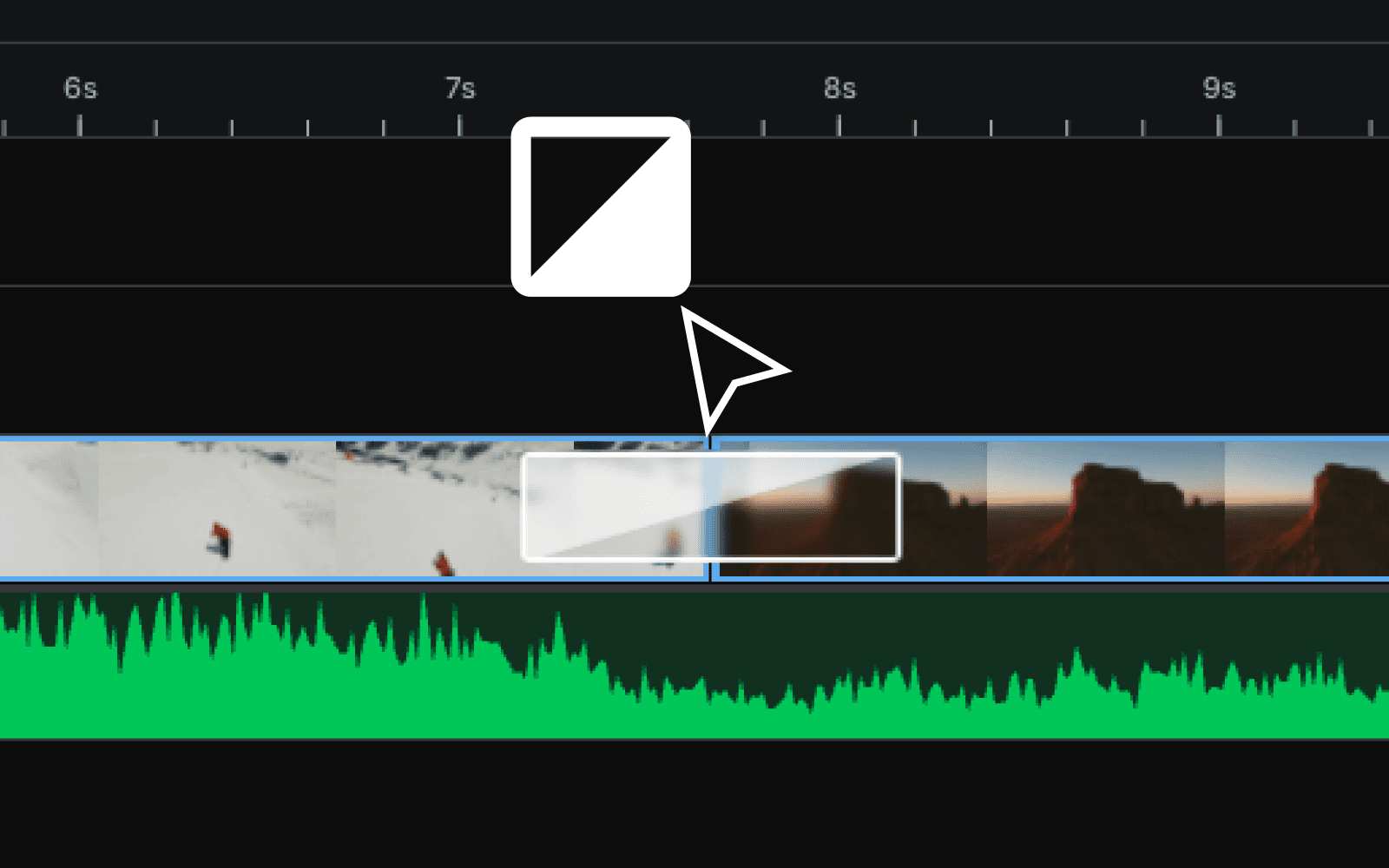
Just drag and drop a transition right between two clips. You can snap the transition block to the left side or right side of the transition point, or centre it over the middle. This gives you the flexibility on where the transition starts and ends.
Important: You always need enough extra footage on the end of your clips to apply the transition. If there isn't enough, trim the ends of the clips at the transition point to create space.
Adjust the transition
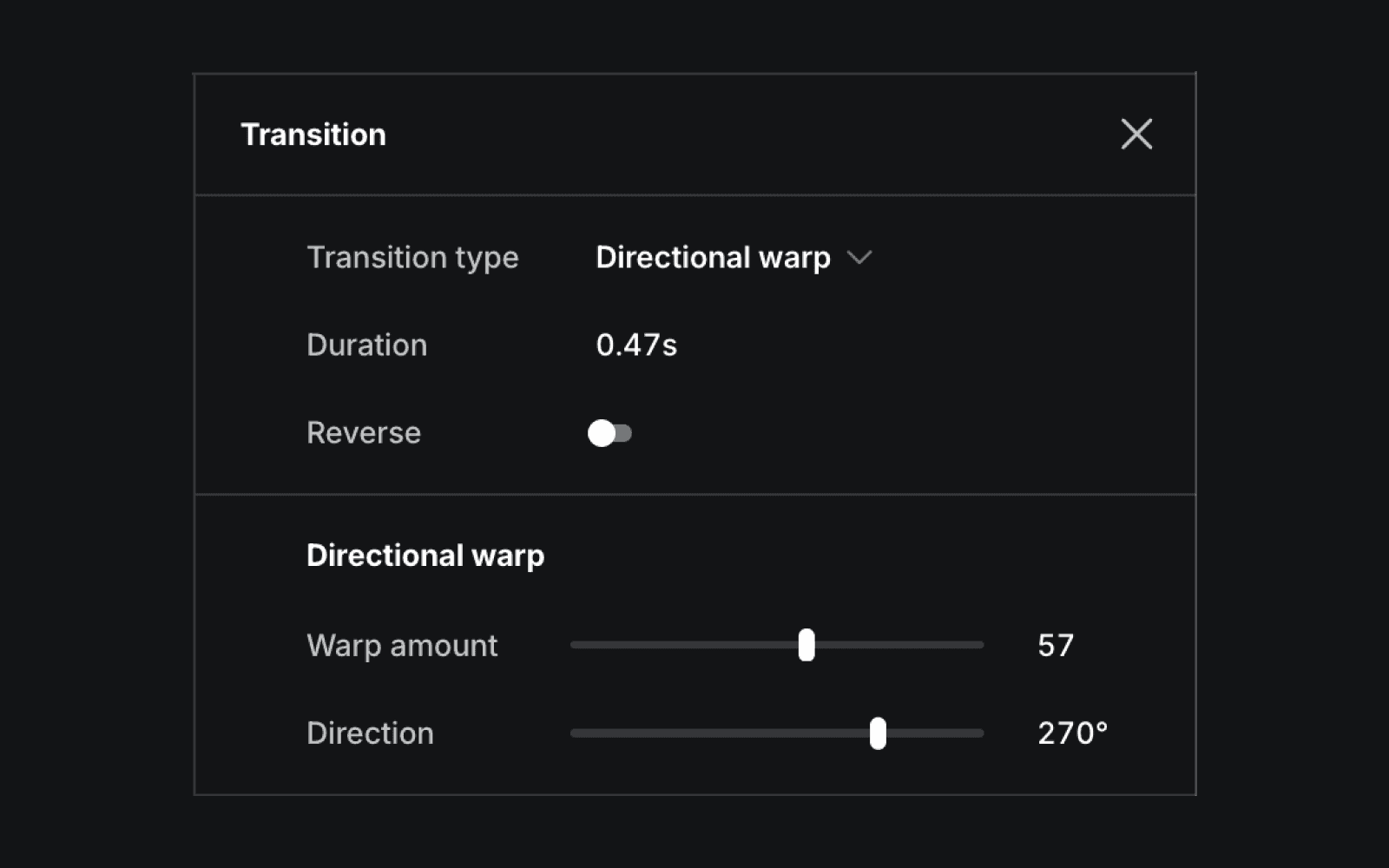
If you click on the transition, you can grab the ends and adjust its duration. You can also go into the transitions panel on the right side of the editor to customise it further. Here, you can tweak controls such as strength, direction, amount, and more, depending on the transition. You can also switch the transition type, manually adjust the duration, or set it to run in reverse.
Remember, the more you trim the end of your clips, the longer your transition can be.
Animate text, shapes, and graphics
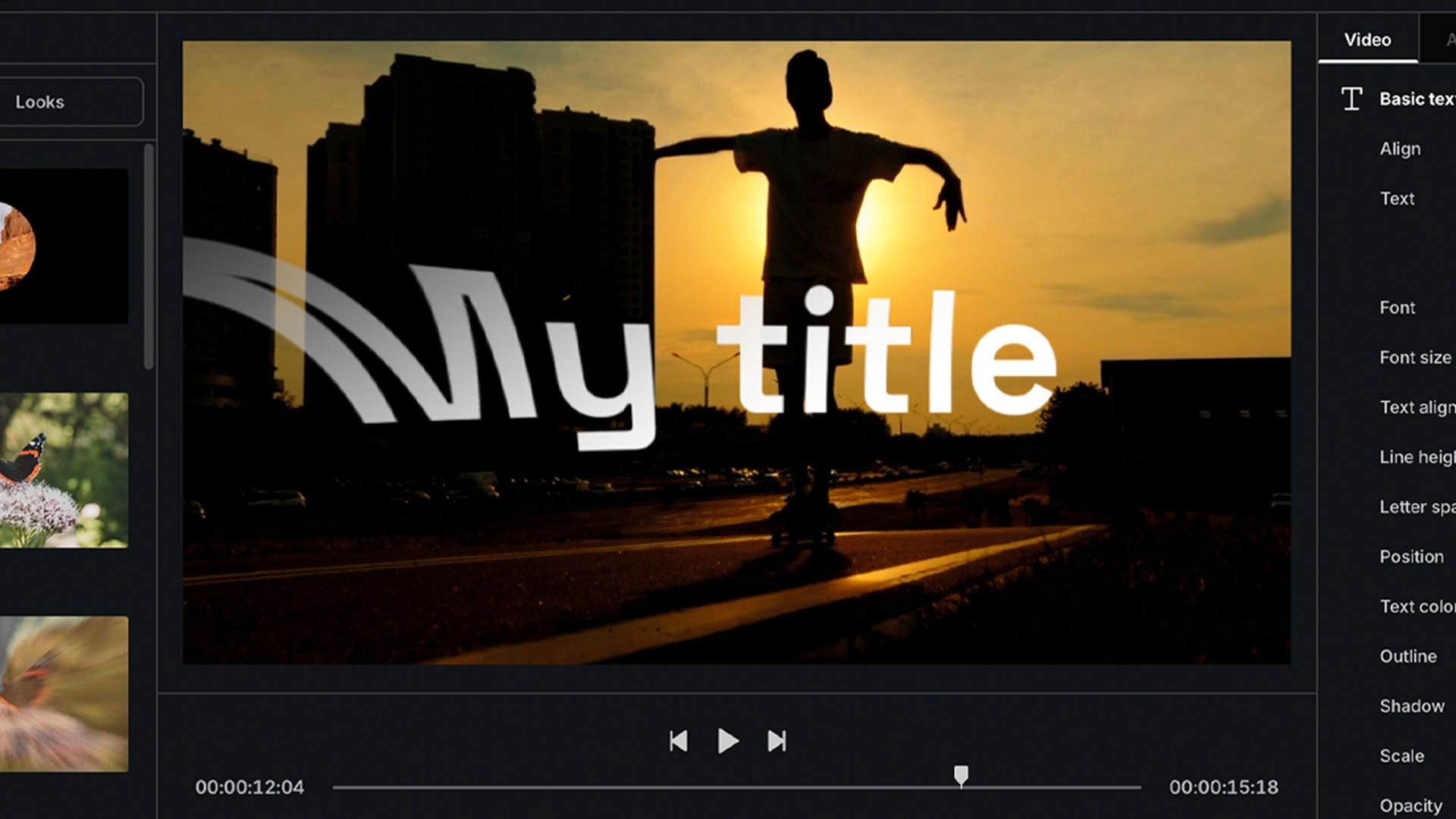
You can also add transitions to your text, shapes, and graphics to create cool animated effects like title reveals.